

What This Plugin Does? #
Buy Now for WooCommerce allows you to add a powerful Buy Now button to both single product pages and shop or catalog pages. This lets customers skip the cart entirely and proceed directly to the checkout page, reducing friction and speeding up the buying process. The button can be displayed before, after, or as a replacement for the Add to Cart button, and it is fully customizable through WooCommerce settings to match your store’s design and conversion goals.
Plugin Settings Overview #
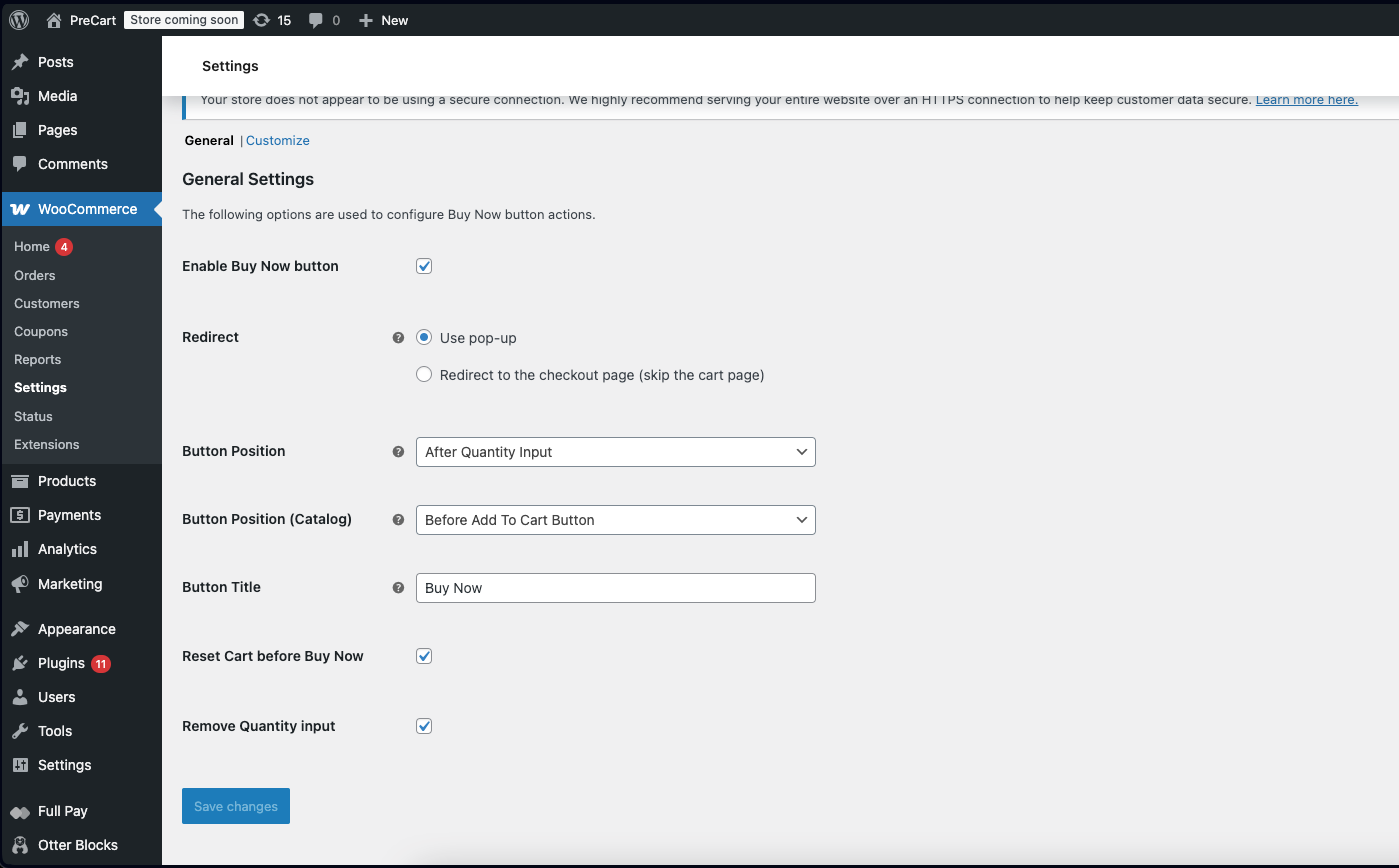
Go to WooCommerce → Settings → Buy Now to access the plugin settings.
General Settings:
- Enable Buy Now Button:
Turn this option ON to enable the Buy Now button on your store. - Button Text:
Change the default text (Buy Now) to something like Buy Now & Checkout if you want. - Redirect After Click:
Determine where customers are directed after clicking “Buy Now”.- Use Pop-up:
Shows a pop-up after clicking the Buy Now button, allowing customers to quickly proceed to checkout or continue shopping without leaving the current page. - Redirect to the checkout page:
Sends customers directly to the checkout page after clicking the Buy Now button, helping them complete the purchase faster.
- Use Pop-up:
- Button Position:
- Before Add To Cart Button: Displays the Buy Now button just above the Add to Cart button on the product page.
- After Add To Cart Button: Displays the Buy Now button immediately below the Add to Cart button on the product page.
- Replace Add To Cart Button: Replaces the default Add to Cart button entirely with the Buy Now button.
- Before Quantity Input: Shows the Buy Now button just before the quantity selector on the product page.
- After Quantity Input: Shows the Buy Now button immediately after the quantity selector on the product page.
- Use a Shortcode (for developers):
Allows developers to manually place the Buy Now button anywhere using a shortcode, giving full control over button placement in themes or custom templates.
How to customize Buy Now Button? #
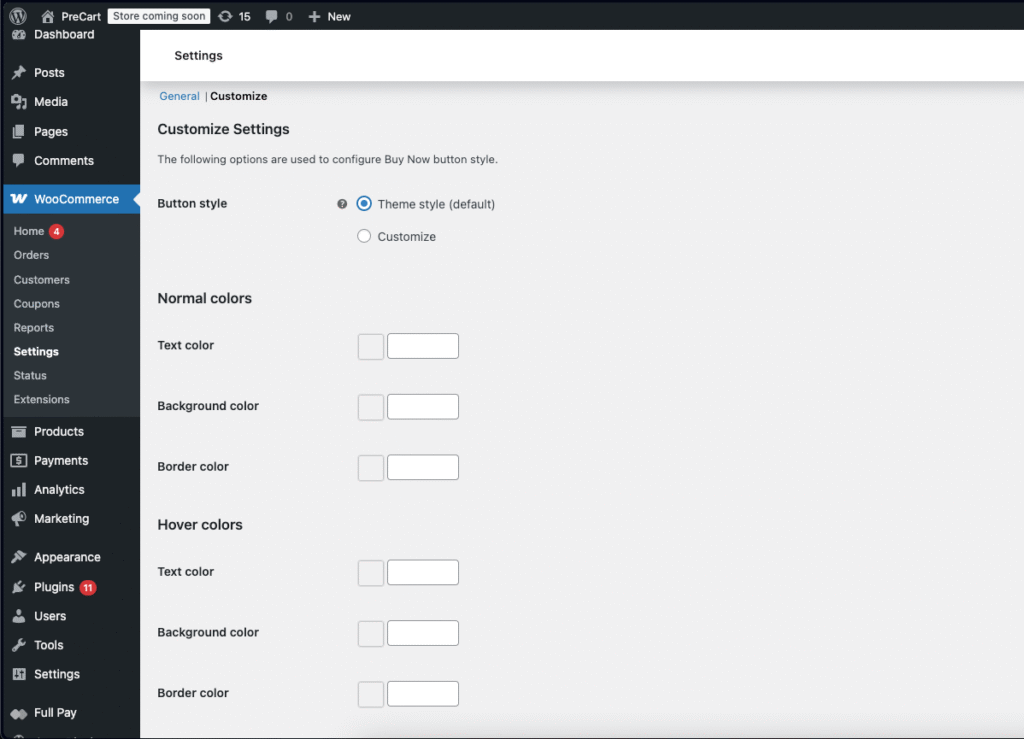
Go to WooCommerce → Settings → Buy Now → Customize to customize the button.
Troubleshooting #
Buy Now button not showing:
Make sure WooCommerce is active
Check plugin settings
Clear site cache
Redirect not working:
Ensure checkout page exists
Re-save WooCommerce permalinks
Frequently Asked Questions #
No, Buy Now appears alongside Add to Cart.
Yes, if WooCommerce guest checkout is enabled.
Yes, it works with most WooCommerce themes.